The Complete Guide to Image Compression (Without Wrecking Quality)
What image compression actually does, the difference between lossy and lossless, and a practical workflow for shrinking files while keeping them sharp.
What it means when a tool processes files in your browser instead of uploading them, what you should still check, and a practical checklist for confidential files and shared computers.
Most of us have done it: you need to shrink a photo, merge two PDFs or turn a spreadsheet into something else, so you search for a free online tool, drop the file in and download the result. What usually goes unasked is where that file went in the meantime. For a holiday photo it may not matter much. For a signed contract, a scanned passport, payroll figures or a client's data, it matters a great deal.
The good news is that a growing number of online tools never need your file to leave your computer at all. They do the work inside your web browser. This article explains what that means in practice, how it differs from uploading, and — just as importantly — what you should still check, because "runs in the browser" is a helpful property, not a magic shield.
A traditional online converter works like a postal service. Your browser sends the file over the internet to the company's server. A program on that server opens it, does the conversion and sends a new file back. While that happens, a copy of your document exists on a computer you do not control. It may be deleted a few minutes later, as many services promise. It may also sit in a temporary folder, a backup or a log for longer than you would like, and you have no way to check.
Browser-based processing works more like a calculator you carry with you. When you open the page, your browser downloads the tool itself — the code that knows how to compress an image or rebuild a PDF. When you choose a file, the browser reads it from your disk into memory on your own device. The tool's code works on it right there, and the finished result is handed back to you as a download that is created locally. The file's contents do not need to travel anywhere.
The main benefit is simple: a file that never leaves your device cannot be leaked, retained or misused by someone else's server. There is no upload to intercept, no copy in a stranger's storage and no retention policy to trust. That makes local tools a sensible default for anything personal, confidential or covered by an agreement with a client or employer.
There are practical advantages too. Large files do not have to crawl up a slow connection, so results often arrive faster. Many local tools keep working on a patchy connection once the page has loaded.
On Toolisco, the tools are built this way: they read your files with the browser's own capabilities and produce results on your device, and the contents of the files you process are not uploaded. Like most websites, the site itself may still measure page visits, as described in the privacy policy and cookie policy. That distinction — between what happens to your file and what happens to your visit — is worth understanding for any site you use.
"Processed in your browser" is a claim, and claims are worth verifying, especially before you trust a tool with something sensitive. A few habits help.
Read what the tool says about itself. A trustworthy tool states plainly whether files are uploaded. Vague wording such as "secure processing" without saying where it happens is a reason to look closer.
Watch the network. Every desktop browser has developer tools with a Network panel. Open it, then process a file. If the tool is local, you will not see a request carrying your file's contents out of the page. If you see a large outgoing request at the moment you click "Convert", the file is being uploaded. It is the most direct check available to an ordinary user.
Try it offline. Load the tool, disconnect from the internet and try again. If it still works, the processing is clearly happening on your device. If it fails, that is not proof of uploading — some tools fetch extra components, such as fonts or a PDF engine, the first time you use a feature — but it is a useful hint.
Local processing removes the biggest risk, but it does not make a web page a sealed box. Three things deserve attention.
Browser extensions. Extensions that are allowed to "read and change data on all websites" can see what is on the page, including file contents shown in a preview and text you type. For sensitive work, review your extensions, or use a browser profile that has none.
Third-party scripts on the page. Many websites load scripts from other companies for analytics, advertising, chat widgets or embedded videos. These run inside the same page as the tool. A well-built tool does not hand your file to them, but the page as a whole is only as trustworthy as everything loaded into it.
Ordinary network requests. A local tool still makes requests — to load its own code, fonts or libraries, and sometimes to count page visits. Those requests are normal. What you are looking for is your data leaving the page, not the page loading itself.
Browsers protect sensitive features behind permission prompts: camera, microphone, location, clipboard access and notifications. A file converter has no reason to ask for your location or microphone. Grant a permission only when it obviously matches the task — a photo booth tool needs the camera, an image converter does not — and remember you can review and revoke permissions in your browser's site settings at any time.
Local tools hand their results to you as downloads, and downloads stay on the device. On your own computer that is what you want. On a shared or public computer, it means the converted file sits in the Downloads folder for the next person, and the browser's download list shows its name. Private or incognito windows do not keep browsing history or cookies after you close them, but files you download still stay on the disk.
Shared machines leave other traces too. Text you copied stays on the clipboard until something replaces it, and forms may offer to save what you typed. Copying something harmless at the end of a session and closing every tab is a small habit that avoids an awkward surprise.
Browser-based tools are one of the more genuinely privacy-friendly developments on the web: they let you get everyday file jobs done without handing your documents to anyone. Use them by default, verify them when the stakes are high, and keep a few simple habits for shared computers. If you would like to see how this works in practice, the tools catalogue and the resources page are good places to start.
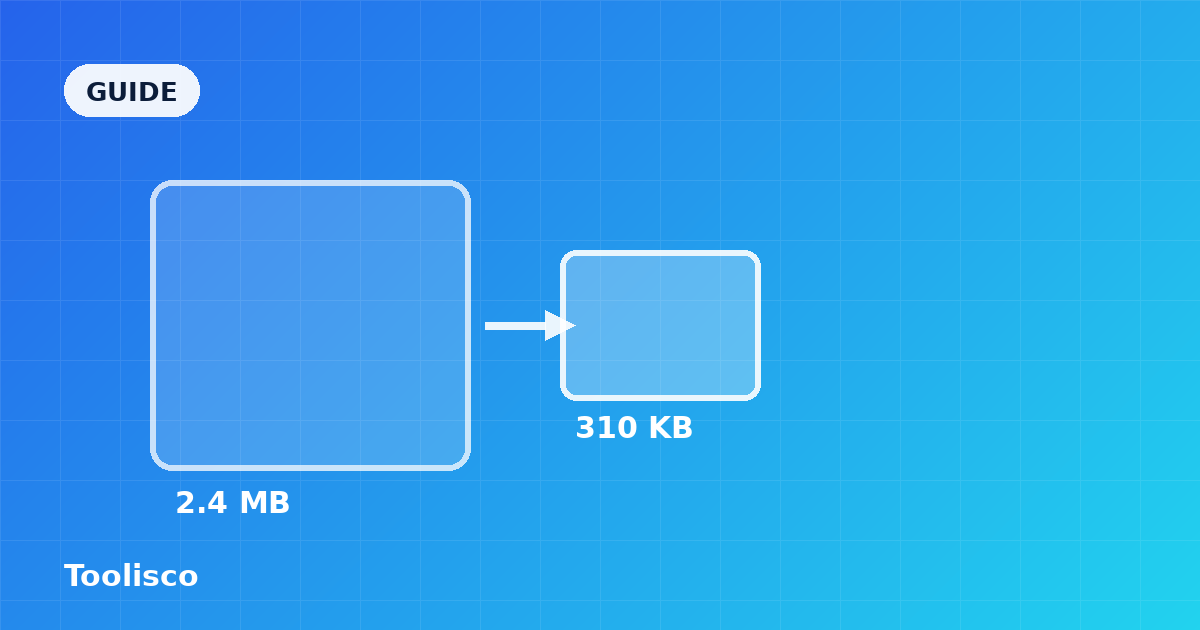
What image compression actually does, the difference between lossy and lossless, and a practical workflow for shrinking files while keeping them sharp.
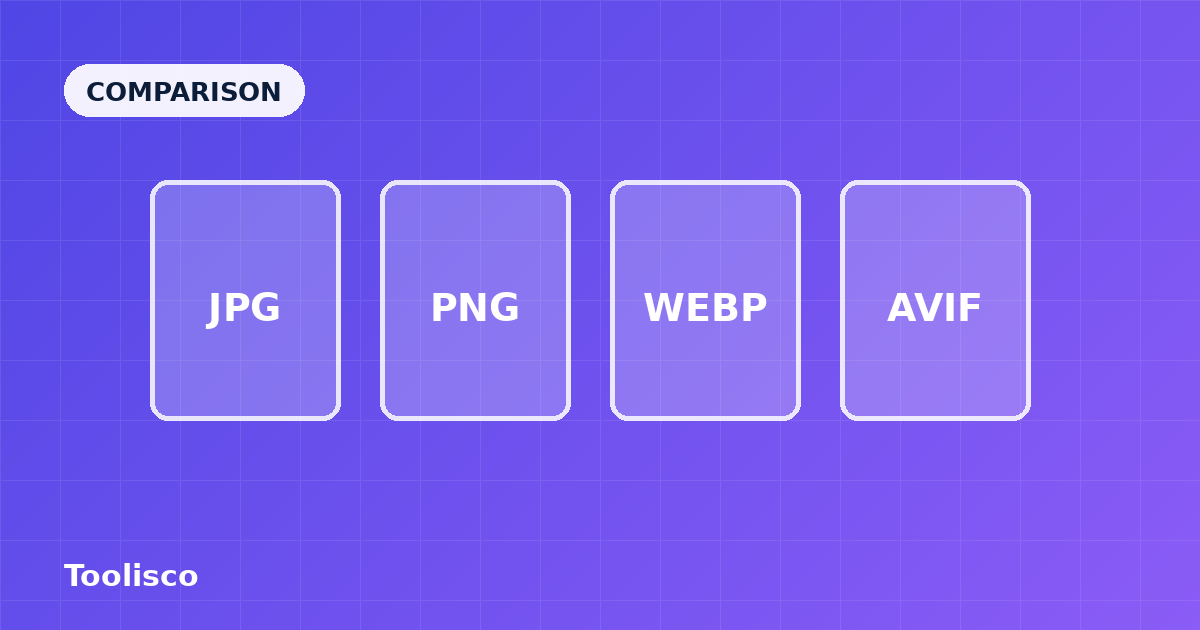
A plain-English comparison of the four formats that matter today — how they differ, where each one wins, and how to choose without overthinking it.

A curated set of small, browser-based utilities that quietly save developers time every week — formatters, converters, generators, and inspectors.